


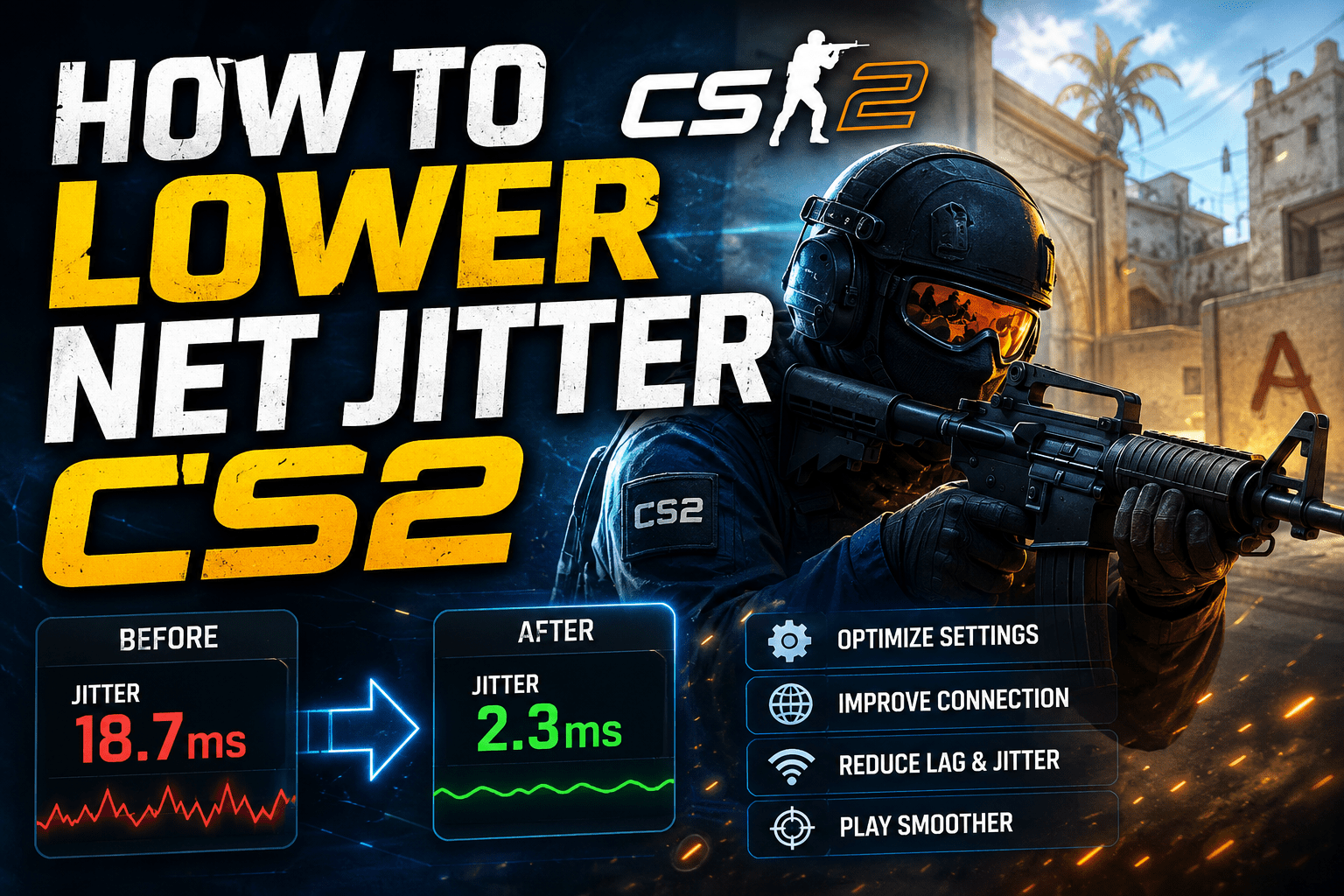
how to lower net jitter CS2 usually starts after something feels wrong despite a decent ping. Enemies skip across the screen, movement briefly rubber-bands, shots feel delayed and the network warning flashes at the worst possible moment.
The frustrating part? A fast internet package doesn’t automatically prevent jitter. Stability matters more than headline download speed. Fortunately, CS2 includes useful telemetry and buffering controls that can help you identify the cause instead of randomly pasting console commands.
How to Lower Net Jitter CS2 Quickly
Start with these fixes in order:
- Connect your PC directly through Ethernet.
- Stop downloads, cloud syncing and video streaming.
- Enable CS2’s detailed network telemetry.
- Set packet-loss/jitter buffering to one packet.
- Test two packets only if one packet isn’t enough.
- Set acceptable game traffic bandwidth to unrestricted.
- Restart your modem and router.
- Update your network adapter driver.
- Test whether other household traffic causes spikes.
- Compare different CS2 servers and playing times.
- Contact your ISP if the problem begins outside your home network.
Don’t apply all these changes at once. Test one adjustment for at least one full Deathmatch session. Otherwise, you won’t know which fix actually helped. how to lower net jitter cs2
What Does Net Jitter Mean in CS2?
Jitter is the variation in the time taken for consecutive network packets to arrive. Ping measures delay, while jitter measures how much that delay changes from one moment to the next. Cisco describes jitter as variation in packet latency, often caused when packets are queued or delayed somewhere along the network path.
Imagine playing at a stable 55 ms ping. It isn’t perfect, but your actions arrive consistently. Now imagine your ping repeatedly moving between 20 ms, 80 ms and 35 ms. The average may still look acceptable, yet the irregular packet timing can make movement and hit registration feel unpredictable.
That is why a stable, moderately higher ping can sometimes feel better than a lower ping with constant spikes.
Net jitter vs. packet loss vs. FPS stutter
These problems can feel similar, but they aren’t identical:
- Jitter: Packets arrive at inconsistent intervals.
- Packet loss: Some packets fail to arrive.
- High ping: Packets consistently take longer to travel.
- FPS stutter: Frames are delayed by CPU, GPU, memory or game-performance issues.
If your network graph remains clean but your frame-time graph spikes, changing your router probably won’t fix the problem. You may be dealing with a performance issue rather than an internet issue.
Enable CS2 Telemetry Before Changing Anything
Open:
Settings → Game → Telemetry
Enable the options that show:
- Ping
- Network problems
- Detailed network quality
- Frame time and FPS
Valve changed CS2’s network-quality measurement so that it reflects how often gameplay ticks are missed because of packet loss or excessive jitter. A detailed display can also show the raw packet-loss and jitter values separately.
This distinction matters. A warning doesn’t always mean a packet disappeared completely. Valve’s telemetry documentation explains that the graph’s warning threshold depends partly on your manually selected buffering level. A packet crossing the red threshold indicates significant jitter relative to that buffer, but it does not automatically prove that gameplay lost a tick.
Record what happens before making changes. Does jitter appear constantly, only during gunfights or whenever someone starts streaming? That pattern is often more useful than the highest number you see.
Use One-Packet Buffering First
Go to:
Settings → Game → Buffering to smooth over packet loss/jitter
Start with one packet.
This setting gives CS2 a small timing cushion for packets that arrive late or unevenly. It can reduce visible skipping and missed-tick warnings on slightly unstable connections. Current CS2 guides commonly recommend testing one packet first and two packets for more severe instability.
There is a trade-off, though. Buffering cannot repair your internet line. It smooths packet delivery by waiting briefly, which may add a small amount of latency.
Use this approach:
- None: Best for an already stable connection.
- One packet: Best starting point for occasional jitter.
- Two packets: Useful when one packet doesn’t control frequent spikes.
Avoid selecting two packets automatically. More buffering isn’t always better, especially when your connection is already stable.
Set Game Traffic Bandwidth to Unrestricted
Find Max Acceptable Game Traffic Bandwidth in the game settings and select Unrestricted, provided your internet connection isn’t extremely limited.
Restricting CS2 to a rate below what the connection can reliably handle may create avoidable network pressure. Several current competitor guides recommend combining unrestricted traffic bandwidth with one- or two-packet buffering.
However, this setting won’t solve household congestion. If another device is saturating your upload connection, increasing CS2’s bandwidth allowance cannot force the router to prioritize the game.
Switch From Wi-Fi to Ethernet
This is often the most effective physical change.
Wi-Fi packets compete with interference, distance, walls, neighboring routers and other wireless devices. Even when a speed test looks excellent, short bursts of interference can create the micro-spikes that matter in a competitive shooter.
Steam Support specifically recommends testing with a direct wired connection because wireless and powerline connections can suffer intermittent failures caused by interference.
Use a working Cat5e or Cat6 cable and connect directly to the router. You do not need an expensive “gaming” cable.
When Ethernet isn’t possible:
- Prefer the 5 GHz or 6 GHz Wi-Fi band.
- Move closer to the router.
- Avoid Wi-Fi extenders when possible.
- Keep the router away from thick walls and electrical interference.
- Test a less congested wireless channel.
Stop Background Uploads and Downloads
Cloud backups are easy to overlook. Google Drive, OneDrive, Steam downloads, Windows Update, streaming software and browser uploads can consume bandwidth while you play.
Upload traffic is particularly troublesome. A nearly saturated upload queue may delay the small, time-sensitive packets CS2 needs, even when your download speed remains high.
Before joining a competitive match:
- Pause Steam and Windows downloads.
- Pause cloud synchronization.
- Stop livestreams and large uploads.
- Close unnecessary launchers.
- Check whether another device is uploading video or backups.
Here’s a simple real-world test: play one match while the network is quiet, then repeat while another device runs a large upload. If jitter appears during the second test, local congestion or router queue management is probably involved.
Restart and Update Your Network Equipment
Restart the modem and router properly:
- Turn both devices off.
- Wait about 30 seconds.
- Start the modem first.
- Wait until it reconnects.
- Start the router.
- Test CS2 again.
Steam’s troubleshooting guidance recommends refreshing local network hardware because routers and modems can enter slow or malfunctioning states after running continuously. how to lower net jitter cs2
Also check:
- Router firmware
- Motherboard or network-card drivers
- Ethernet cable condition
- Loose ports or connectors
- Network adapter power-saving settings
Download drivers from your motherboard, laptop or adapter manufacturer rather than relying on unknown “driver updater” applications.
Fix Jitter Caused by Bufferbloat
Bufferbloat happens when a router allows queues to become too long during heavy traffic. Your connection may deliver excellent speed while idle, then produce severe latency spikes whenever somebody downloads or uploads data.
This matches the networking principle that jitter often results from packets being queued or delayed inconsistently.
Run a loaded-latency or bufferbloat test. If idle latency is low but rises dramatically under upload or download load, explore your router’s:
- Quality of Service
- Smart Queue Management
- Device prioritization
- Gaming traffic priority
- Bandwidth-control settings
Configure these carefully. An incorrect bandwidth limit can reduce performance rather than improve it.
Check Your Server Route and ISP
If Ethernet, buffering and a quiet home network don’t help, the problem may exist between your ISP and Valve’s network. how to lower net jitter cs2
Look for these clues:
- Jitter becomes worse during evening peak hours.
- Only certain server locations are affected.
- Friends using another ISP don’t experience the issue.
- The first router hop is stable, but later hops become inconsistent.
- The problem persists across multiple PCs on your connection.
Valve expanded jitter measurement to more connection types, including direct UDP connections to community servers, making in-game network diagnosis more informative than it was in older builds.
Collect screenshots, match times, server regions and test results before contacting your ISP. “My game lags” is hard to investigate. A repeatable pattern is much more useful.
Should You Use a Gaming VPN?
A VPN can occasionally help when an ISP uses a poor or congested route to the game server. It may send traffic through a different path.how to lower net jitter cs2
But a VPN can also add another server, increase ping and introduce fresh jitter. Treat it as a diagnostic test, not a guaranteed optimization.
Test the same server region with and without the VPN. Keep it only if the route becomes consistently more stable—not because a marketing page promises lower ping.
Avoid Random CS2 Console and Registry Tweaks
Many guides recommend long lists of rate, interpolation, adapter and Windows Registry changes. Some are outdated, some are irrelevant, and a few can make the connection worse.
Avoid:
- Downloadable “network optimization packs”
- Unknown PowerShell scripts
- Disabling security features
- Copying an entire stranger’s autoexec
- Changing multiple adapter properties simultaneously
- Assuming DNS changes will remove in-match jitter
Use CS2’s visible settings first. They’re easier to reverse and easier to test.
Frequently Asked Questions
What is a good net jitter value in CS2?
Lower and more consistent is better, but don’t judge the connection using one isolated number. Watch whether jitter crosses CS2’s warning threshold, creates missed ticks or produces noticeable rubber-banding during actual gameplay. how to lower net jitter cs2
Does one-packet buffering increase input lag?
It can add a small delay because the game has extra time to receive uneven packets. For an unstable connection, the improvement in consistency may be worth that trade-off. Start with one packet rather than two.
Why do I have jitter with low ping?
Ping is average delay. Jitter is variation in delay. You can have a low average ping while individual packets arrive at inconsistent times.
Can high FPS fix net jitter?
No. High FPS can improve visual smoothness and responsiveness, but it cannot stabilize packet delivery. Check both the frame-time and network telemetry graphs to identify which problem you have.
Will faster internet lower CS2 jitter?
Not necessarily. A faster plan may help when bandwidth is genuinely saturated, but routing, Wi-Fi interference, bufferbloat and ISP congestion can affect even very fast fiber connections. how to lower net jitter cs2
Why is CS2 jitter worse at night?
Evening problems often point toward household traffic, neighborhood congestion or overloaded ISP routes. Compare several tests at different hours before changing PC settings.
Conclusion: How to Lower Net Jitter CS2 Properly
The best way to learn how to lower net jitter CS2 is to stop treating every lag spike as the same problem. Enable telemetry first, distinguish network instability from FPS stutter and change one variable at a time.
Begin with Ethernet, one-packet buffering, unrestricted game bandwidth and a quiet network. Then restart your equipment, investigate bufferbloat and compare server routes. If the first hop is clean but later connections remain unstable, collect evidence and contact your ISP.
The goal isn’t merely a lower number on the screen. It’s consistent packet delivery—and a match that finally feels predictable.